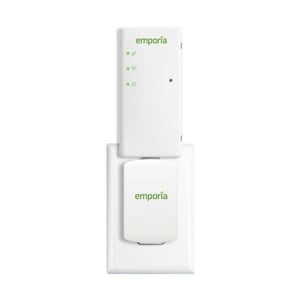
The Emporia Vue Utility Connect energy monitor is a wireless Home Area Network (HAN) device that easily plugs into a standard 120v electrical outlet in your home near your ZipBee® enabled AMI smart meter. There the system protects your home’s health by helping you manage energy use and solar generation. It helps make your home more energy efficient!
The Vue connects to the cloud via your WiFi network, collects energy usage data every 5-10 seconds and monitors electricity use and generation 24/7. It then tracks how much energy is being used in your home or how much is generated and sent back to the grid. Data is sent securely over your WiFi to the Emporia Cloud where energy calculations and analysis are completed, then provided back to you via the app in the form of actionable recommendations that help prevent costly repairs, conserve energy and save money.
Locate the Advanced Metering Infrastructure (AMI) smart meter provided by your utility. It will typically be found on the outside of your house in close proximity to your circuit panel. This meter makes energy usage available through a wireless protocol that the Vue can receive to analyze your whole home energy usage. For the Vue to work, it will need to be plugged into a 120v AC outlet within 50 feet of your smart meter.
B. Get the app.
Use your phone to check the signal strength of your WiFi network next to the AC outlet you identified in Step 1. Low/no signal may require a WiFi extender for the Vue to work.
Next, download the Emporia Energy app onto your phone or tablet from the Apple App Store or from Google Play. Create an account and begin the setup process. The app will let you know when it’s time to return to this installation guide and install your Emporia Vue.
C. Plug in the Vue.
Plug the USB dongle of the energy monitor into the USB port of the AC adapter. Then, plug the AC adapter into the electrical outlet identified in Step A. When properly powered, the power light on the front of the energy monitor will illuminate green.
D. Use the app to connect to WiFi.
Go back to the Emporia Energy app on your phone or tablet. Make sure your phone is within 30 feet of the Vue. Click the “My Emporia Vue is Ready” button in the app when you’re ready to proceed. Then you’ll connect the Vue to your nearby WiFi network. Make sure you have your WiFi name and password. Once connected, the WiFi light on the energy monitor will illuminate green.
E. Connect to your smart meter.
Go to emporiaenergy.com/utilities to find your location and corresponding electricity provider. Then follow the detailed instructions to connect the Vue to your AMI smart meter. Once your smart meter is connected to your Vue, the link light on the energy monitor will illuminate green.
To download an installation guide for your Emporia Vue Utility Connect, click here.
Still having trouble?Visit emporiaenergy.com/support or call 1-844-EMPORIA (367-6742).